
Markdown Primer Help 🖊️
Introduction to MarkDown
 Markdown is probably the simplest markup language. It allows to format text using just a few special characters, like ” * ” or ” _ ” to indicate bold text, italic, headers, and more. Then, Markdown viewers such as Markdown Primer render that text into HTML format, making it viewable in any standard web browser like Google Chrome.
Using Markdown, one can quickly write notes, small manuals and more, without needing to type all the extra tags that HTML syntax requires. It makes publishing content on the Internet much faster and easier.
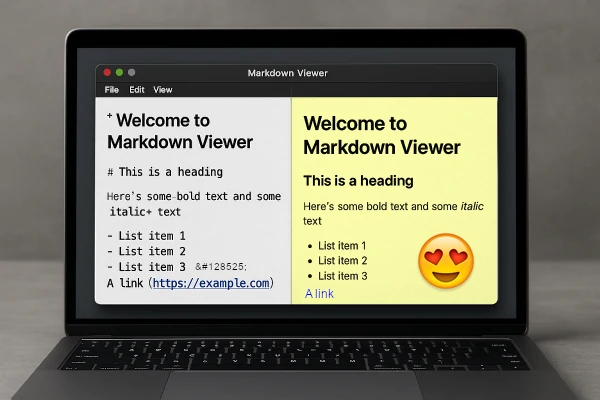

Markdown syntax is typically divided into two parts, the Basic syntax, which is universally supported by all viewer apps, and the Extended syntax, which was added later and may not be supported everywhere. Markdown has become so popular that other formats and platforms now integrate seamlessly with it. Some examples include, YAML, a data-formatting language often used in Markdown for metadata. Mermaid, a tool for generating complex diagrams from simple code blocks, and LaTeX a widely used typesetting system for writing mathematical and scientific formulas in a readable way.
➤ Markdown Primer

A clean and powerful Markdown viewer with extended syntax support, smart add-ons, and themes.
Get MarkDown Primer – Chrome Extension from Google’s Web Store. 🆓
➤ Overview
🌐 Markdown Primer takes .md files to the next level with support for both basic and extended syntax, additional modules (like role-based blockquotes), multiple themes (Light, Dark, GitHub, etc.), and diagram support via Mermaid, all directly in the browser, and even within a single page. Whether need to read documentation, notes, or technical content, this extension ensures the Markdown is clear, sharp and professional.
📁 Markdown Primer also supports local Markdown files. To enable this feature, one must activate “Allow access to file URLs” in the extension settings of the browser.

➤ Basic Features
- ✅ Basic Text Syntax
- New Line & New Paragraph
- Italic & Bold text
- Headings
- ✅ Basic Modules
- Blockquotes
- Ordered & Unordered Lists
- Inline & Block Code
- Images
- Links & Reference Links
- Horizontal Rule
➤ Extended Features
- ✅ Extended Text Syntax
- Underline
- Superscript & Subscript
- Strikethrough
- Text Highlight
- Abbreviations
- ✅ Advanced Modules
- Tables with Alignment
- IDs & Classes for headings, links, and images
- Definition lists
- Callouts (Blockquotes with Roles)
- Code Block Highlighting (HTML, CSS, JS, PHP)
- Task Lists
- Comments
- Footnotes
- ✅ Power Features
- Marked.js markdown parser
- YAML Front-matter (show – hide)
- LaTex & MathML Notation
- Mermaid Diagrams for visual flows and charts
- Multiple built-in Themes including GitHub-style, dark mode, and more
- Font Awesome free web fonts
- ➤ Now also supports text files (.txt), with the option for styling
📌 Built for users who want a solid Markdown experience with powerful extras – without clutter.
➤ Markdown Syntax Manual
| Markdown Syntax | Generated HTML | Rendered Output | |
|---|---|---|---|
| Use this … | Or this … | ||
| BASIC SYNTAX | |||
| Note: Avoid leading spaces on new lines, paragraph starts, and lines defined by syntax. | |||
| New Line | |||
| Type at least two Spaces and then Enter ⏎ | Press the Enter ⏎ key once (extended syntax) | <br> | This is the first line. This is the second line. |
| New Paragraph | |||
| Press the Enter ⏎ key twice | <p>This is the first paragraph. <p>This is the second paragraph. |
This is the first paragraph. This is the second paragraph. |
|
| Italic text | |||
| *Italic Text* | _Italic Text_ | <i>Italic Text</i> | Italic Text |
| Bold text | |||
| **Bold Text** | __Bold Text__ | <b>Bold Text</b> | Bold Text |
| Headings | |||
| # Heading 1 ## Heading 2 ### Heading 3 … |
Heading 1 ========= Heading 2 – – – – – – – – |
<h1>Heading 1</h1> <h2>Heading 2</h2> <h3>Heading 3</h3> … |
Heading 1 Heading 2 Heading 3 … |
| Blockquote | |||
| Leave blank line here > This is the text of one blockquote. Large blockquotes can span across several lines. Leave blank line here |
Nested Blockquotes also supported | <blockquote><p> This is the text of one blockquote. Large blockquotes can span across several lines. </p></blockquote> |
This is the text of one blockquote. Large blockquotes can span across several lines. |
| Ordered Lists | |||
| 1. First Item 2. Second Item 3. Third Item |
Nested lists also supported | <ol> <li> First Item <li> Second Item <li> Third Item </ol> |
|
| Unordered Lists | |||
| – First Item – Second Item – Third Item |
* First Item * Second Item * Third Item |
<ul> <li> First Item <li> Second Item <li> Third Item </ul> |
|
| Inline Code | |||
| Use `code` in the Markdown file. | If there is a backtick in the code, enclose the code in two backticks Use `` `code` `` in the Markdown file. |
Use <code>code</code> in the Markdown file. | Use code in the Markdown file. |
| Code Blocks | |||
| Indent each line by at least 1 tab or 4 spaces from the left margin. Leave blank line here
    @media only screen and (min-width: 577px) {
      body {
       padding: 20px;
      }
    }
Leave blank line here
|
<pre><code> @media only screen and (min-width: 577px) { body { padding: 20px; } } </code></pre> |
|
|
| Images | |||
|  | <img src=”markdown.svg” alt=”The MarkDown Logo“> | |
|
| Links | |||
| Go [Here](https://NetBuddy.Net) | Shorthand <https://NetBuddy.Net/> |
Go <a href= “https://NetBuddy.Net“> Here</a> | Go Here |
| Reference Links | |||
| [NetBuddy][1] ⋮ [1]: https://NetBuddy.Net “NetBuddy Net“ |
[NetBuddy] [1] ⋮ [1]: <https://NetBuddy.Net> (NetBuddy Net) |
<a href=”https://NetBuddy.Net” title=”NetBuddy Net“>NetBuddy</a> | NetBuddy |
| Horizontal Rule | |||
| On single line: – – – |
On single line: *** |
<hr> | |
| Markdown Syntax | Generated HTML | Rendered Output | |||||||||||||
|---|---|---|---|---|---|---|---|---|---|---|---|---|---|---|---|
| Use this … | Or this … | ||||||||||||||
| EXTENDED SYNTAX | |||||||||||||||
| Note: Avoid leading spaces on new lines, paragraph starts, and lines defined by syntax. | |||||||||||||||
| Underline | |||||||||||||||
| ++Underlined Text++ | <u>Underlined Text<u> | Underlined Text | |||||||||||||
| Superscript & Subscript | |||||||||||||||
| 15^2^ and H~2~O | 15<sup>2</sup> and H<sub>2</sub>O | 152 and H2O | |||||||||||||
| Strikethrough | |||||||||||||||
| ~~Strike-through Text~~ | <del>Strike-through Text</del> | ||||||||||||||
| Highlighted Text | |||||||||||||||
| ==Highlighted Text== | <mark>Highlighted Text</mark> | Highlighted Text | |||||||||||||
| Abbreviation | |||||||||||||||
| the HTML specification ⋮ *[HTML]: Hyper Text Markup Language |
The abbreviation must be alone in a single line – case sensitive | the <abbr title=”Hyper Text Markup Language“>HTML</abbr> specification | the HTML specification | ||||||||||||
| Tables with Alignment | |||||||||||||||
3 or more Hyphens in 1 columnLeft Centre Right Alignment | Syntax | Description | Test Text | | :- - - - - | :- - - - - -: | - - - - - -: | | Header | Title | Here's this | | Paragraph | Text | Words and | | Chapter | Content | And more | |
|
||||||||||||||
| HTML IDs & Classes (for headings, links, and images) | |||||||||||||||
| Headings: ## Header 2 {#header2 .headers} Links: [A Link](url){#link1 .links} Images: {#img1 .images} |
Headings: <h2 id=”header2” class=”headers“>Header 2</h2> Links: <a href=”url” id=”link1” class=”links“>A Link</a> Images: <img src=”url“ alt=”image” id=”img1” class=”images“> |
||||||||||||||
| Definition lists | |||||||||||||||
| Orange : The fruit of an evergreen tree. Apple : A green tasteful fruit. : An American computer company. |
<dl> <dt>Orange</dt> <dd>The fruit of an evergreen tree of the genus Citrus.</dd> <dt>Apple</dt> <dd>A green tasteful fruit.</dd> <dd>An American computer company.</dd> </dl> |
|
|||||||||||||
| Callouts (Blockquotes with Roles) | |||||||||||||||
Examples:
> [!NOTE] > This note provides additional context to help understand the syntax more clearly. > [!WARNING] > Leading spaces may break the intended formatting or render the syntax invalid. |
5 types: Note: [!NOTE] Tip: [!TIP] Important: [!IMPORTANT] Warning: [!WARNING] Caution: [!CAUTION] |
<blockquote class=”alert alert-note”><p>📝 Note <br>This note provides additional context to help understand the syntax more clearly.</p></blockquote> <blockquote class=”alert alert-warning”><p>⚠️ Warning <br>Leading spaces may break the intended formatting or render the syntax invalid.</p></blockquote> |
|
||||||||||||
| Fenced Code Block with Highlighting (HTML, CSS, JS, PHP) | |||||||||||||||
| ```php class Car { function Car() { $this->model = “Ford”; } } // create an object $Fiesta = new Car(); ``` |
~~~php ⋮ code here ⋮ ~~~ OR {% highlight php %} ⋮ code here ⋮ {% endhighlight php %} |
<pre class=”language-php”> <code class=”language-php”> </pre> |
|
||||||||||||
| Task Lists | |||||||||||||||
| – [x] Completed action A – [ ] Uncompleted event B – [ ] Take holidays soon |
Since MD Primer functions as a Markdown viewer, checkbox interactivity is disabled. | <ul> <li><input checked disabled type=”checkbox”></input> Completed action A <li><input disabled type=”checkbox”></input> Uncompleted event B <li><input disabled type=”checkbox”></input> Take holidays soon </ul> |
|
||||||||||||
| Comments | |||||||||||||||
| [//]: # (This is a comment) | … inline %% This is a comment %% text … | <!– This is a comment –> | … inline text … | ||||||||||||
| Footnotes | |||||||||||||||
| A simple link to footnote,[^1] … ⋮ [^1]: This is the footnote. |
Currently, footnotes must be defined on a single line. | A simple link to footnote,<sup id=”ref:1″><a href=”#fn:1″>1</a></sup> … |
|||||||||||||
➤ POWER FEATURES
Marked.js
Marked.js is the core engine behind Markdown Primer. It provides the Basic Syntax, while Markdown Primer extends it with the Extended Syntax and several Power Features.
As the developers of Marked.js state, it is a lightweight, low-level Markdown compiler designed for speed, parsing Markdown without caching or blocking.
YAML (YAML Ain’t Markup Language)
“YAML is a human-friendly data serialization language for all programming languages”.
YAML for Markdown defines document metadata. A YAML front matter block must positioned at the very top of the document, enclosed by triple dashes (– – –). No content or white-space is allowed before it. While YAML front matter can also be used to control layout or formatting, MD Primer currently uses it only to define metadata, such as title, author, tags, date, etc. Custom pairs (key: “value”) can also be added.
Markdown Primer parses the YAML metadata and inserts it as hidden content in the generated HTML. A toggle button is added to allow users to show or hide the metadata block.
YAML Syntax Example
---
# YAML Metadata
title: "Quick Start with Audio"
author: "NetBuddy.Net"
version: "1.0"
date: 2025-05
license: "CC BY-SA 4.0"
tags: [audio, codecs, beginner, markdown]
description: "A compact guide to understanding audio formats, bitrates,
  and storage choices with charts and comparison tables."
---

# Welcome
This example demonstrates the core syntax supported by Markdown Primer. Any custom pair key: “value” may be added.
LaTex & MathML Notation
LaTeX is a typesetting system designed for high-quality display of mathematical and scientific notation.
MathML is an XML-based markup language that describes both the structure and content of mathematical expressions.
Several free LaTeX editors are available online, such as https://editor.codecogs.com/ and https://arachnoid.com/latex/, both offering MathJax previews. LibreOffice Math and Microsoft Word can also export equations as MathML when saving to HTML format.
Markdown Primer supports both LaTeX and MathML notation using the MathJax JavaScript library. MathJax can be disabled when not required, – a toggle option is available in the Chrome’s Markdown Primer extension settings (options page) to activate LaTeX and MathML rendering.
Inline LaTeX syntax must be enclosed in a single dollar sign ($ … $), while block LaTeX notation must be enclosed in double dollar signs ($$ … $$). MathML must be written using its XML tags.
LaTex & MathML Examples
Inline LaTeX notation: $\int_0^\infty e^{-x} \, dx = 1$
or
\(\int_0^\infty e^{-x} \, dx = 1\).
Inline LaTeX notation: 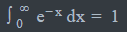 .
.
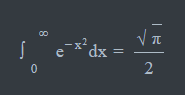
Block-level maths with LaTeX notation:
$$
\int_0^\infty e^{-x^2} dx = \frac{\sqrt{\pi}}{2}
$$
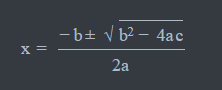
MathML (XML) embedded notation:
<math xmlns="http://www.w3.org/1998/Math/MathML" display="block">
  <mrow>
    <mi>x</mi>
    <mo>=</mo>
    <mfrac>
      <mrow>
        <mo>−</mo>
        <mi>b</mi>
        <mo>±</mo>
        <msqrt>
          <mrow>
            <msup><mi>b</mi><mn>2</mn></msup>
            <mo>−</mo>
            <mn>4</mn><mi>a</mi><mi>c</mi>
          </mrow>
        </msqrt>
      </mrow>
      <mrow>
        <mn>2</mn><mi>a</mi>
      </mrow>
    </mfrac>
  </mrow>
</math>
Mermaid Diagrams for Visual Flows and Charts
Mermaid is a popular and open-source JavaScript-based diagramming and charting tool that generates diagrams from text-based descriptions.
Mermaid can be disabled when not required, – a toggle option is available in the Chrome’s Markdown Primer extension settings (options page).
Mermaid syntax is used to create diagrams. It is fairly straightforward and can typically be learned in a day. Markdown recognizes a Mermaid block in the same way as a standard code block: three backticks followed by ‘mermaid’ ```mermaid, and closed again with three backticks ```, both on their own line.
Mermaid diagrams may begin with an optional YAML front matter block for configuration and core formatting. Like all YAML blocks, it is enclosed in triple dashes (- – -). The front matter is followed by a single-line declaration of the diagram type, after which the diagram syntax itself begins.
Mermaid supports various diagram types, which are documented on the official Mermaid website. In addition, it supports Font Awesome to help users add icons if preferred.
Mermaid Examples
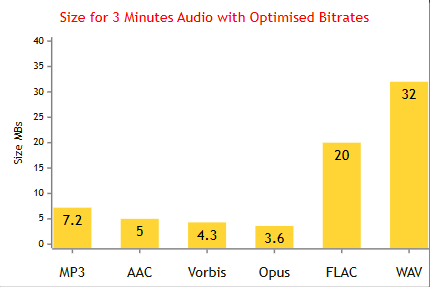
```mermaid
---
config:
    xyChart:
        width: 600
        height: 400
        titlePadding: 18
        titleFontSize: 24
        showDataLabel: true
        xAxis:
            labelFontSize: 20
            labelPadding: 15
        yAxis:
            titlePadding: 15
    themeVariables:
        xyChart:
            plotColorPalette: gold
            titleColor: red
            xAxisLineColor: gray
            xAxisTickColor: gray
            yAxisLineColor: gray
            yAxisTickColor: gray
---
xychart-beta
    title "Size for 3 Minutes Audio with equal Bitrates"
    x-axis [MP3, AAC, Vorbis, Opus, FLAC, WAV]
    y-axis "Size MBs" 0 --> 40
    bar [7.2, 5, 4.3, 3.6, 20, 32]
```
Note: Mermaid in YAML section doesn’t support tabs, one must use spaces.
```mermaid
flowchart LR
	A[fas:fa-circle-play Start] --> B{far:fa-circle-question Is it?} -->|fas:fa-circle-check Yes| C[far:fa-thumbs-up OK]
	C --> D[far:fa-lightbulb Rethink] --> B ---->|fas:fa-circle-xmark No| E[fas:fa-house-chimney End]
```
Rendered Output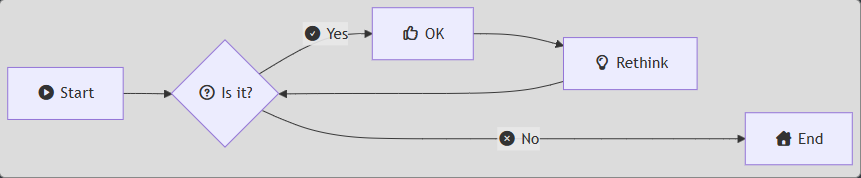
Multiple Themes
Theme examples will be available soon. Please check back later.
Font Awesome Free Web Fonts
Around 2,600 font icons are included and can be used in Mermaid diagrams or anywhere else they are needed.
In Mermaid, the icon style must be specified using a prefix, followed by a colon and the icon name. For example: fas:fa-home renders the solid version of the “home” icon.
In Markdown the <i> tag is used with the appropriate class. For example: <i class=”fas fa-home”></i>.
There are four available icon styles in Font Awesome Free:
- fa: Clasic
- far: Regular
- fas: Solid
- fab: Brands
A complete list of free icons is available on the Font Awesome website .
Text Files (.txt)
There are occasions when reading a text file where some formatting is preferred, such as a different font, coloured text, or a styled background. Markdown Primer provides all of these features.
.txt parsing can be disabled when not required, – a toggle option is available in the Chrome’s Markdown Primer extension settings (options page).
Made with the assistance of ChatGPT.